Quick Start Guide

Master the features of Pop Song Chord Book

Quick Navigation

Jump to a specific section:

Song Detail Screen

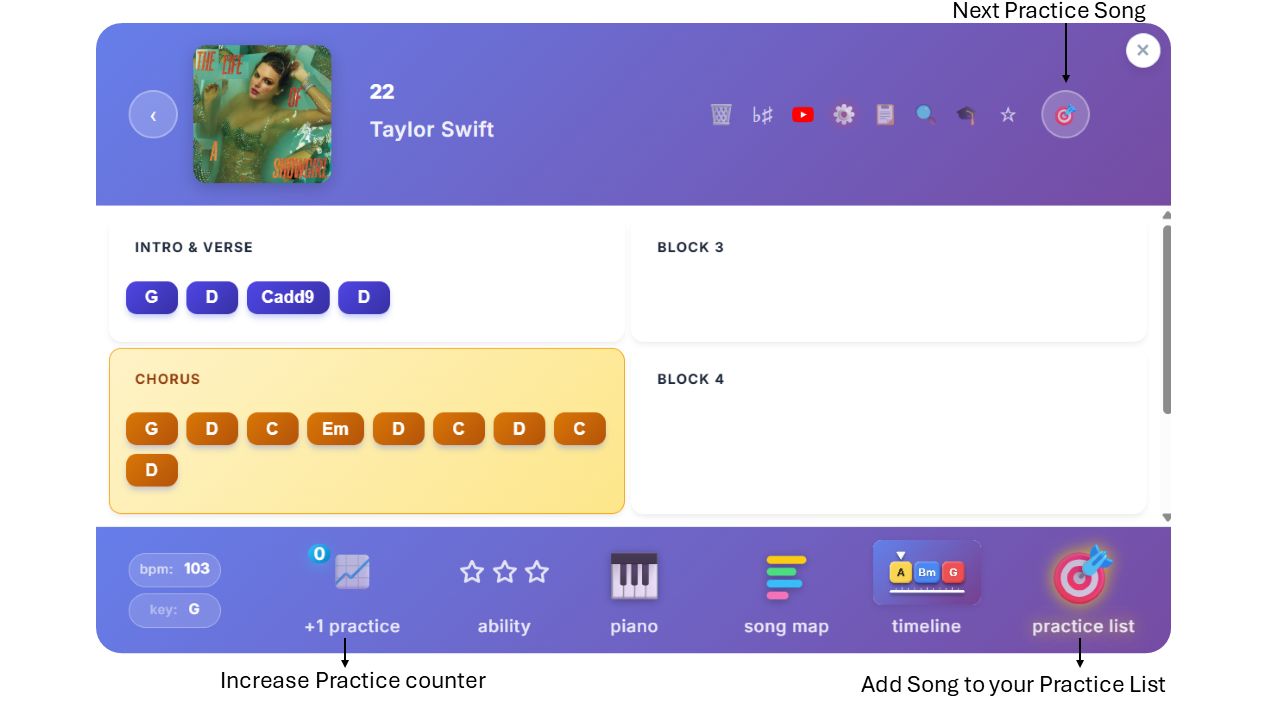
Clicking on any song brings you to the detail view. Here you can see the chords, structure, and playback controls. The interface is designed to be clean and easy to read while you play.

Feel free to make your own descriptions like : Intro, Verse, Chorus, Pre-Chorus or even some lyrics cue tips as you see fit. Whatever helps you to understand the structure of the song.
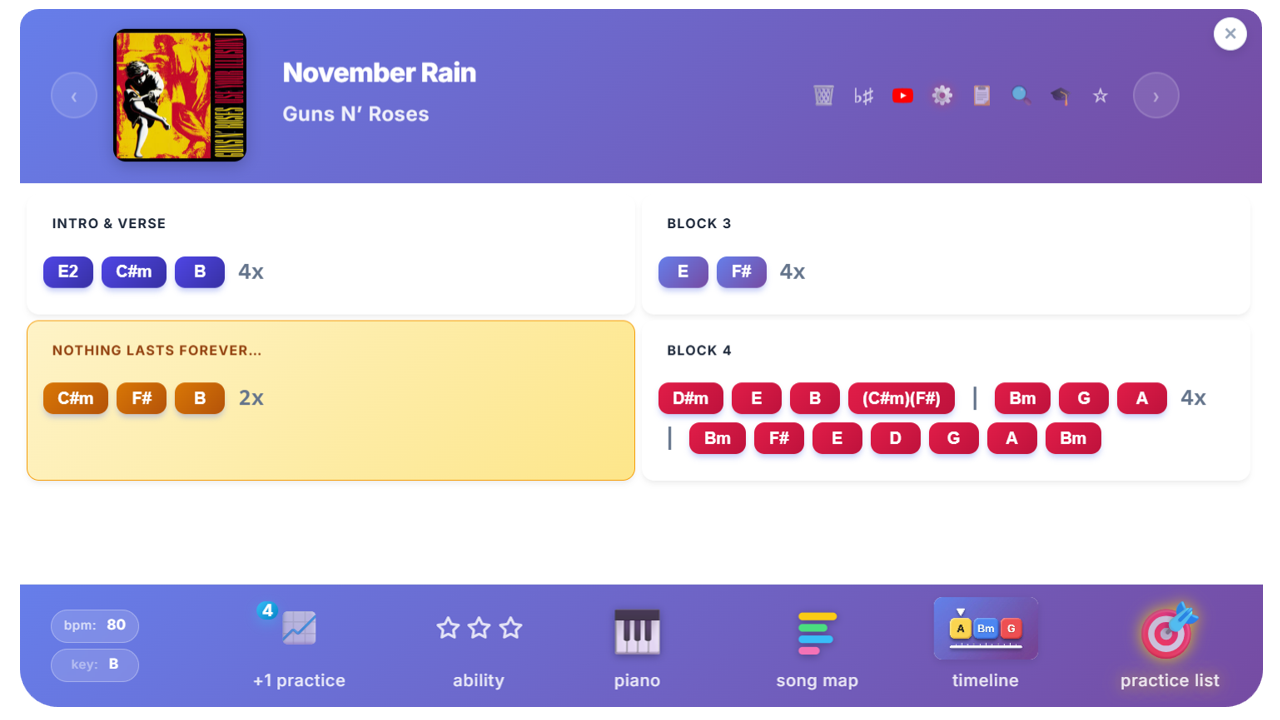
Detail Screen

๐ŸŽน Note on Slash Chords & Inversions

When dealing with slash chords like C/E (1st inversion) or C/G (2nd inversion), a shorter notation method is often used:

โ€ข C3 = 1st Inversion (notes: E G C). The C note is the third note in the triad.
โ€ข C2 = 2nd Inversion (notes: G C E). The C note is the second note in the triad.
โ€ข C (no number) = Root position (notes: C E G).

This makes it quick to read and write while keeping the interface clean, but feel free to use whatever notation you prefer!
Creating a New Setlist

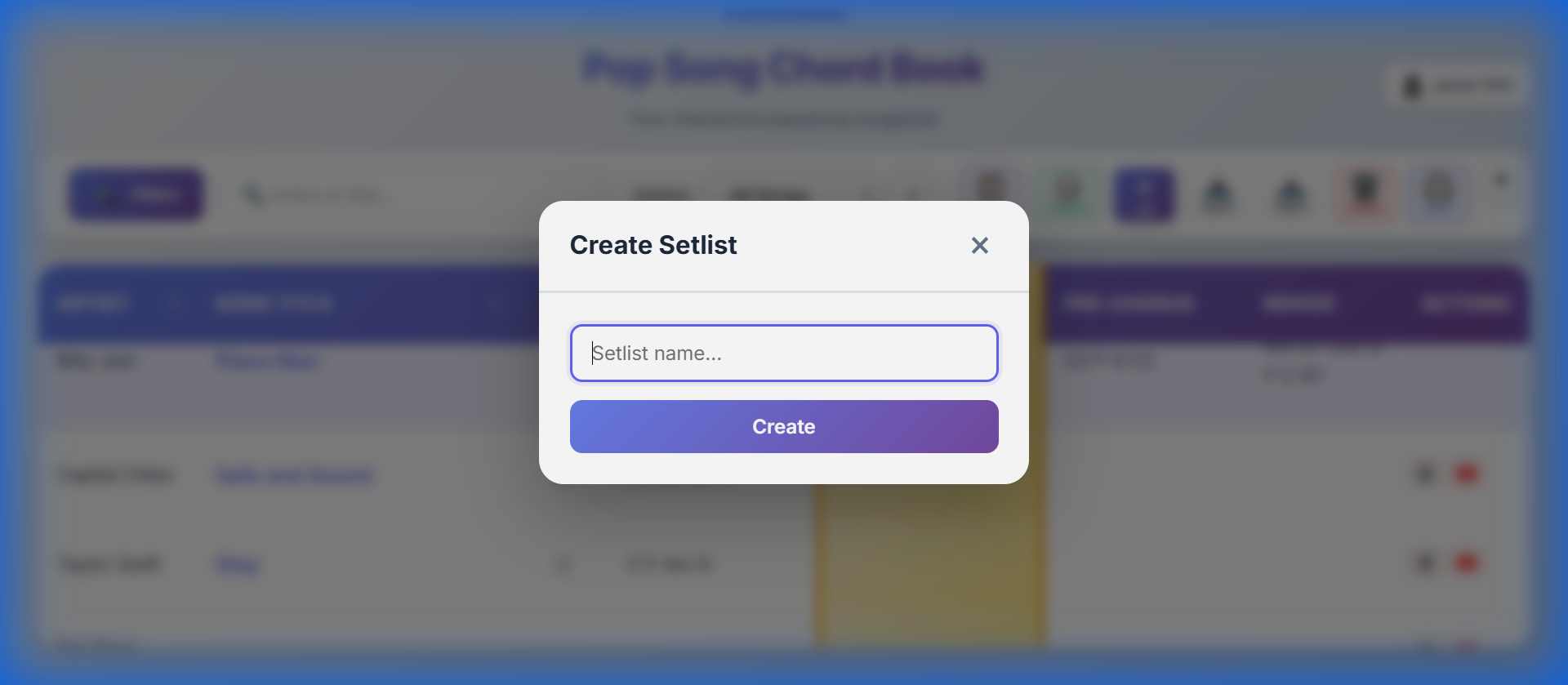
Organize your repertoire by creating custom setlists. Click the "+" button in the setlist section to create a new list, give it a name, and start adding your favorite songs for easy access during practice or performance.

New Setlist Modal

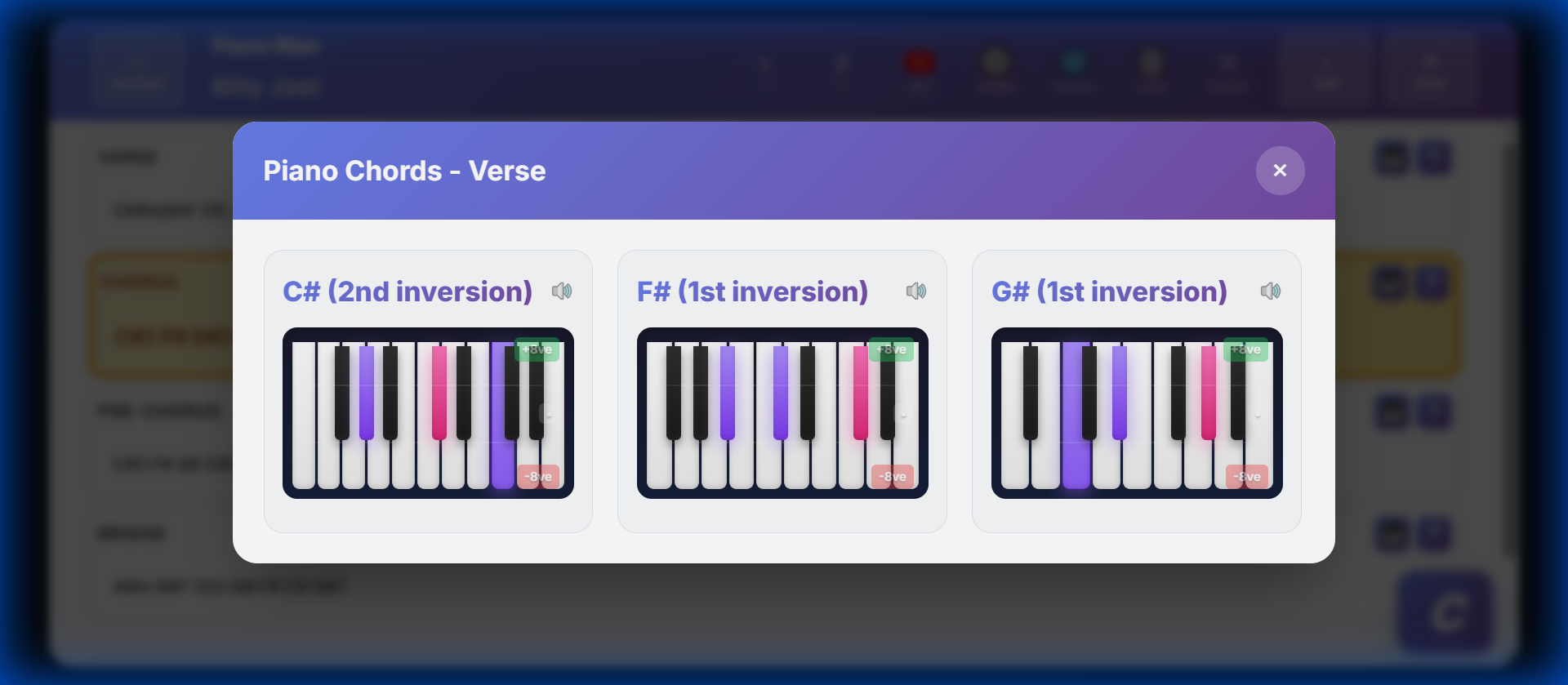
Checking Piano Chords

Need help with a chord voicing? Switch to the Piano view to see exactly which keys to press. The diagrams light up to show you the precise fingering for each chord in the song.

Piano Chords View

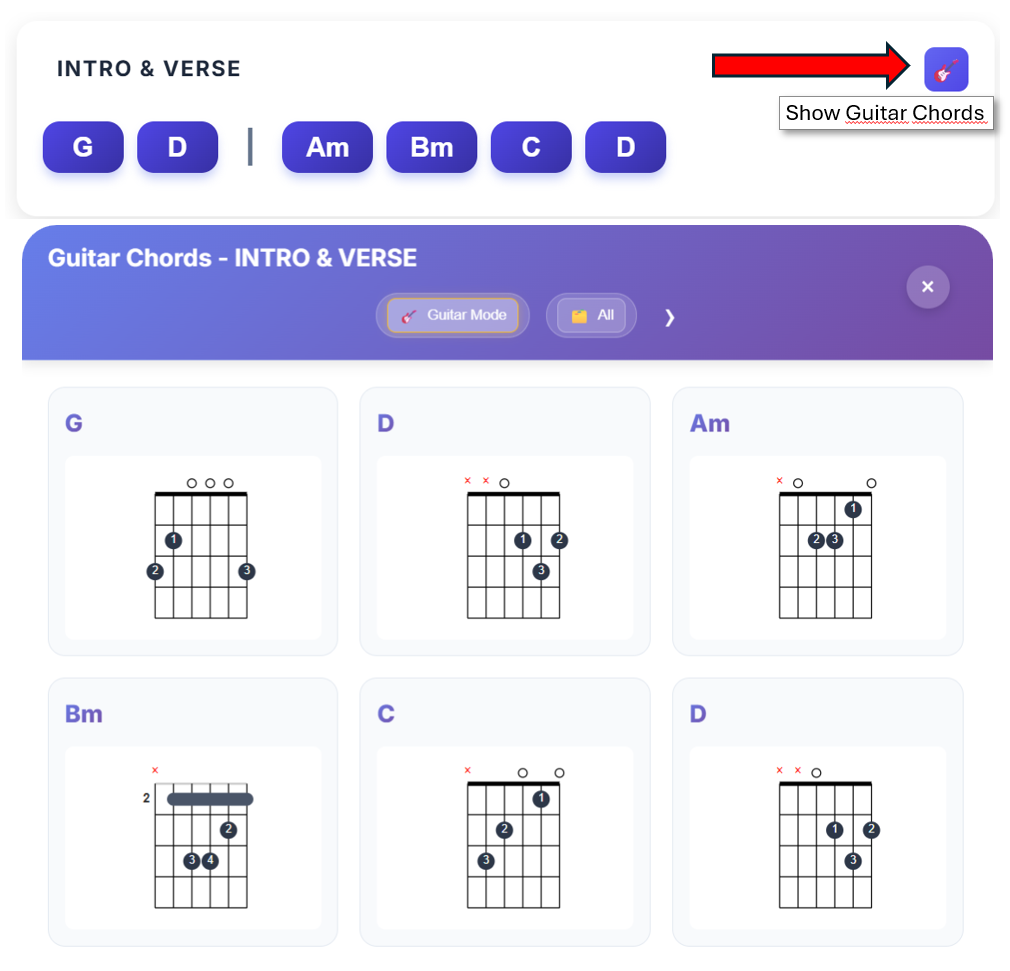
Checking Guitar Chords

Toggle to Guitar mode to see high-quality fingering diagrams for every chord in your song. This view is perfect for both beginners and experienced players.

๐Ÿ Guitar Mode Features

  • Chord Diagrams: See clear, vertical neck diagrams with finger positions and open/muted string indicators.
  • Ukulele Support: You can even switch to Ukulele mode (u) to see 4-string fretboard diagrams for every chord.
Guitar Chords View

Capo Feature

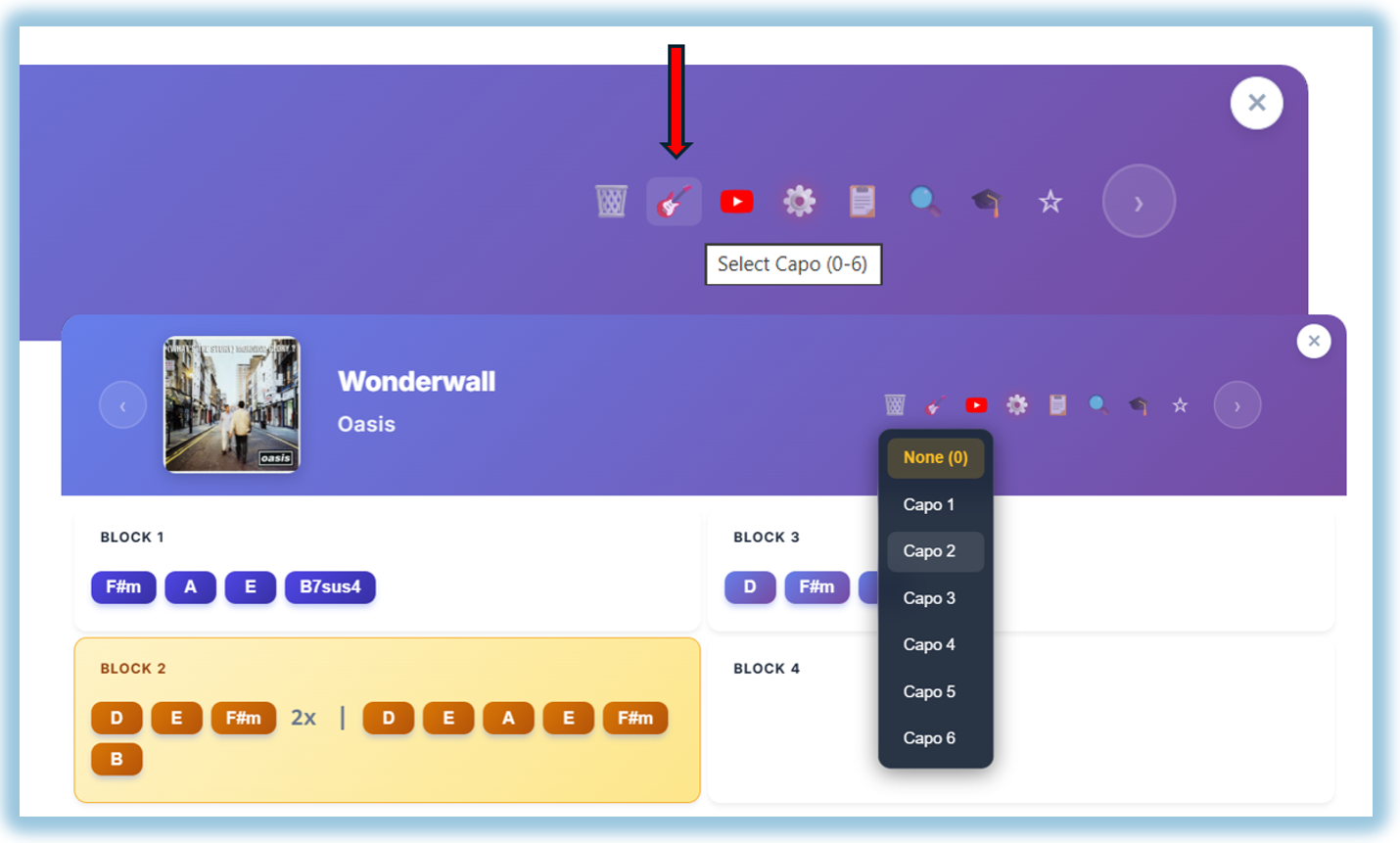
The Capo feature allows you to transpose your song visually without changing the target sound. This is perfect for guitar players who want to use familiar chord shapes while playing in a different key.

๐ŸŽธ Using the Capo (0-6)

  • Capo Selector: When in Guitar mode, the standard Transpose buttons are replaced by a Capo icon (๐ŸŽธ) and a level selector (0-6).
  • Smart Fingering: When you set a capo (e.g., Capo 2), the chord diagrams in the "Show Guitar Chords" modal automatically update. They will show you the physical fingering shape you need to hold relative to your capo to produce the correct chord!
  • Visual Feedback: A yellow indicator badge on the guitar icon helps you remember that a capo transpose is currently active.
Capo Feature Interface

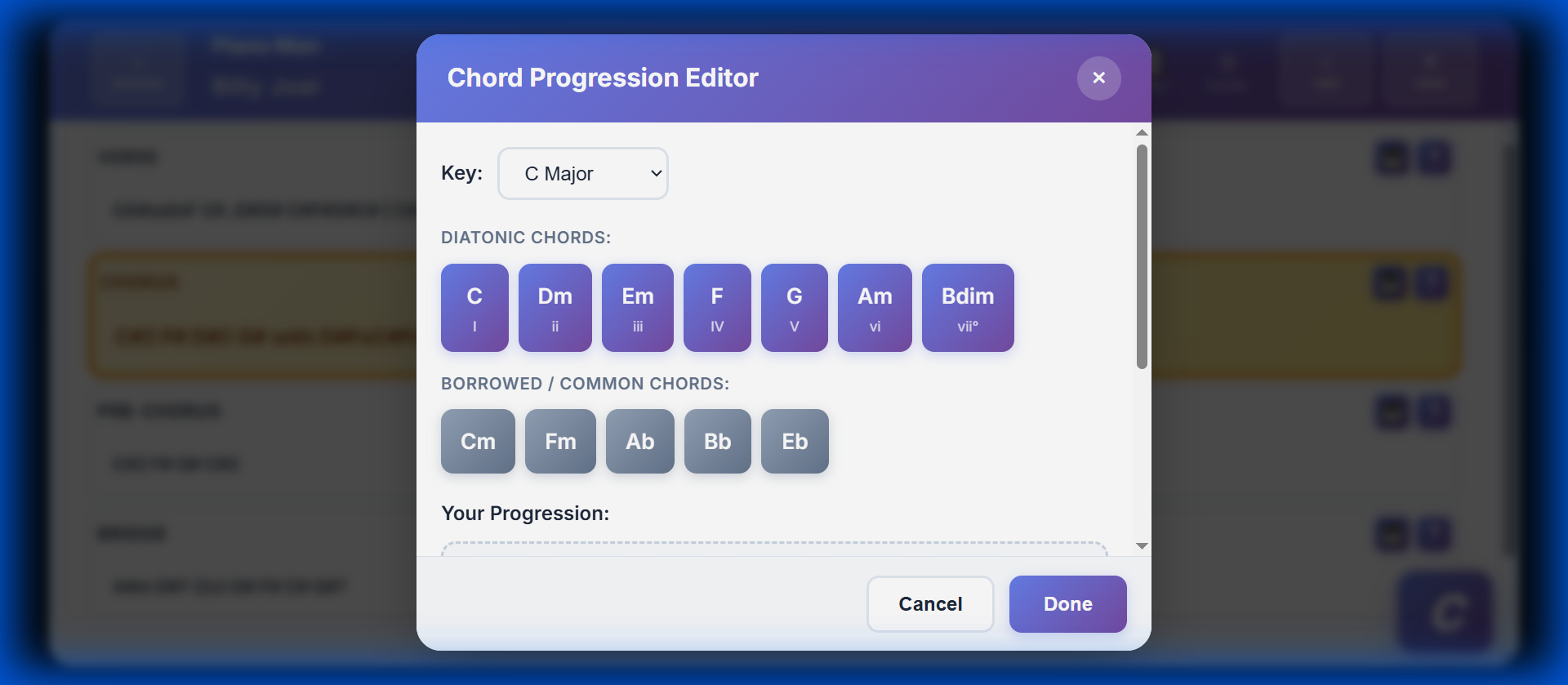
Chord Progression Editor

Want to customize a song? Open the editor to modify chords. You can choose from diatonic chords valid for the key or borrow chords to spice up the progression.

Chord Progression Editor

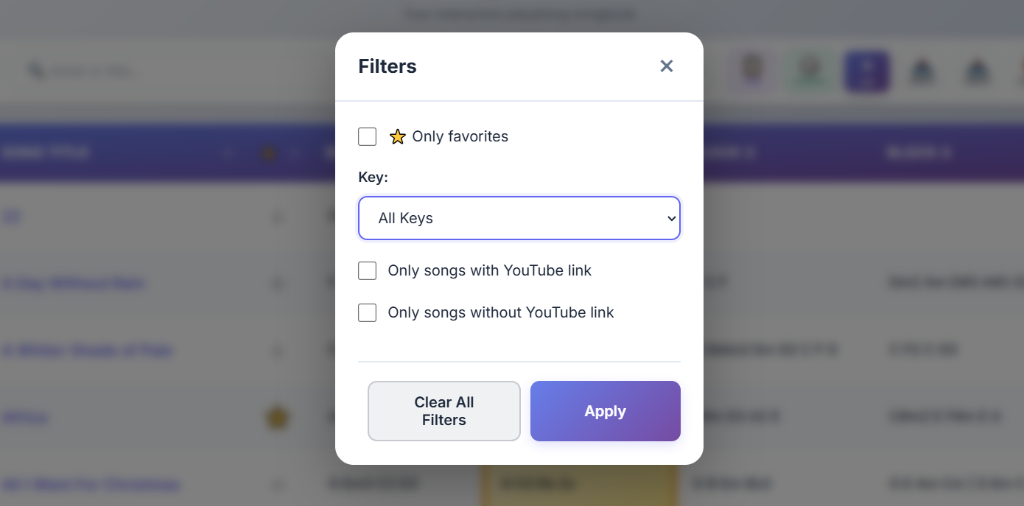
Filtering by Key

Practice your scales! Looking for songs in a specific key? Use the filter menu to select a key (e.g., C Major). The song list will update to show only songs that match your criteria.

Filter by Key

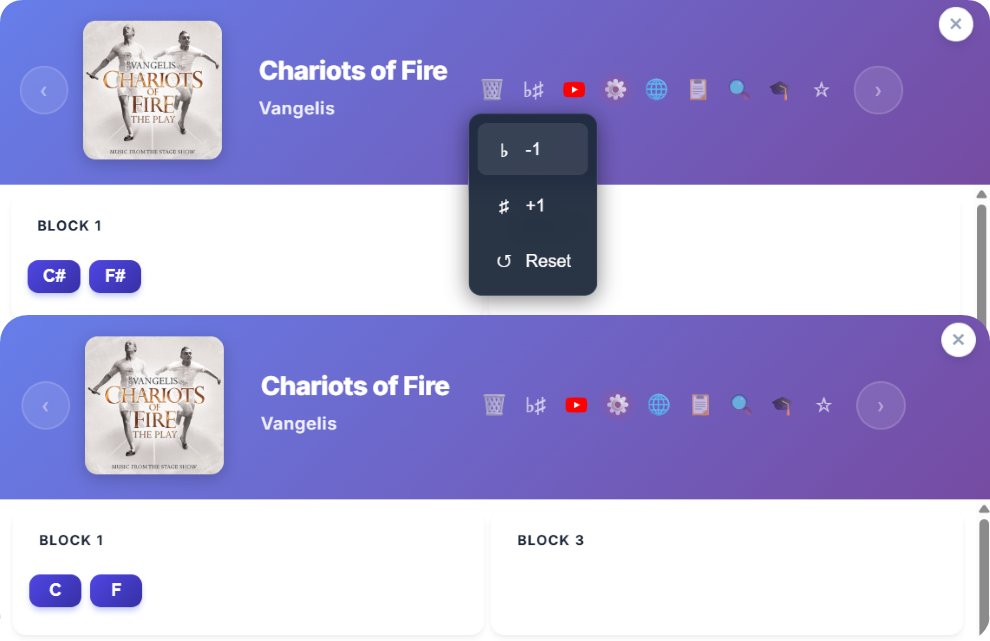
Transposing Songs

Need to change the key to suit your voice? Use the transpose controls (+ / -) on the detail page. All chords in the song will instantly update to the new key.

Transposing Controls

Lyrics & Teleprompter

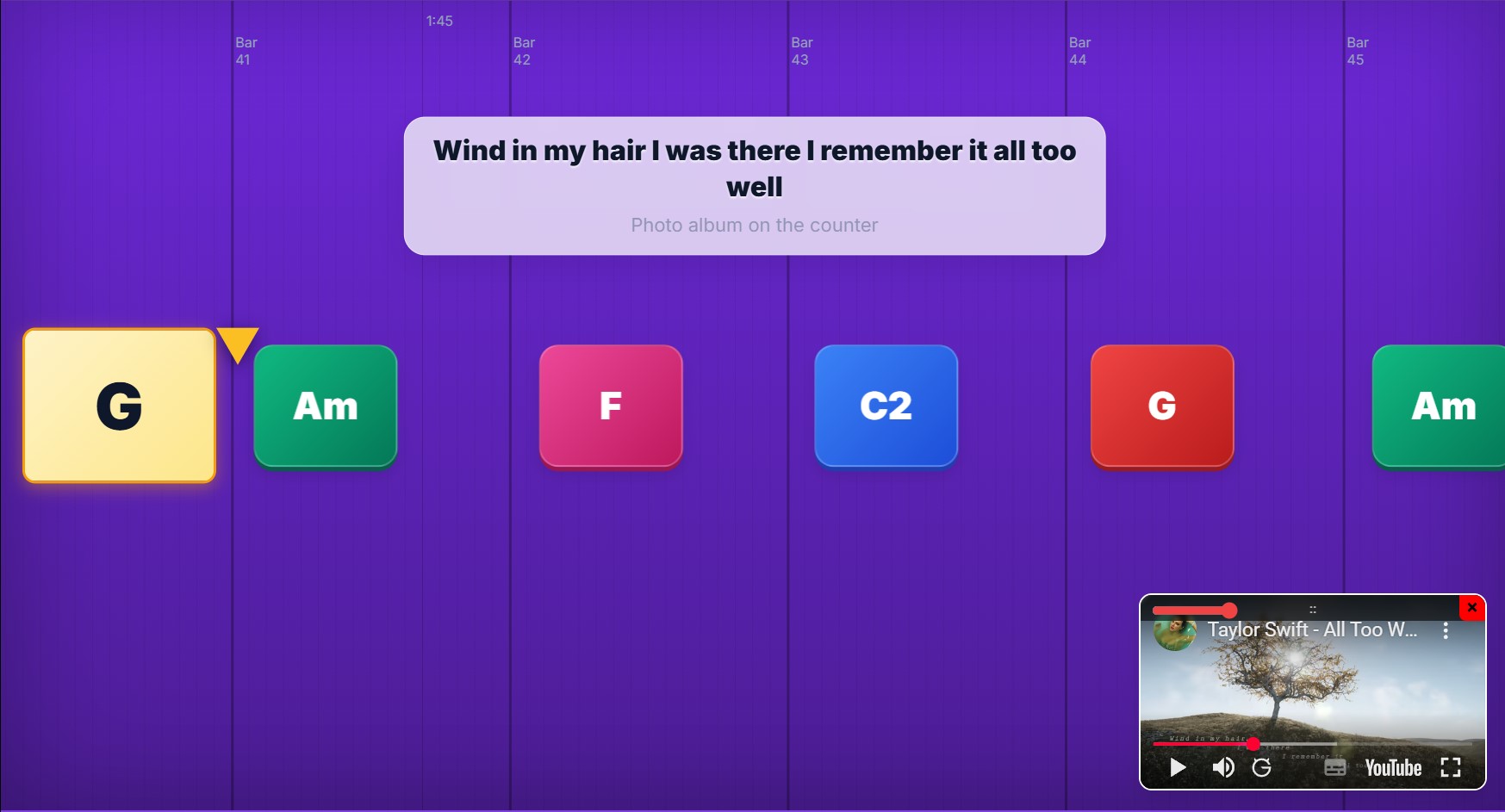
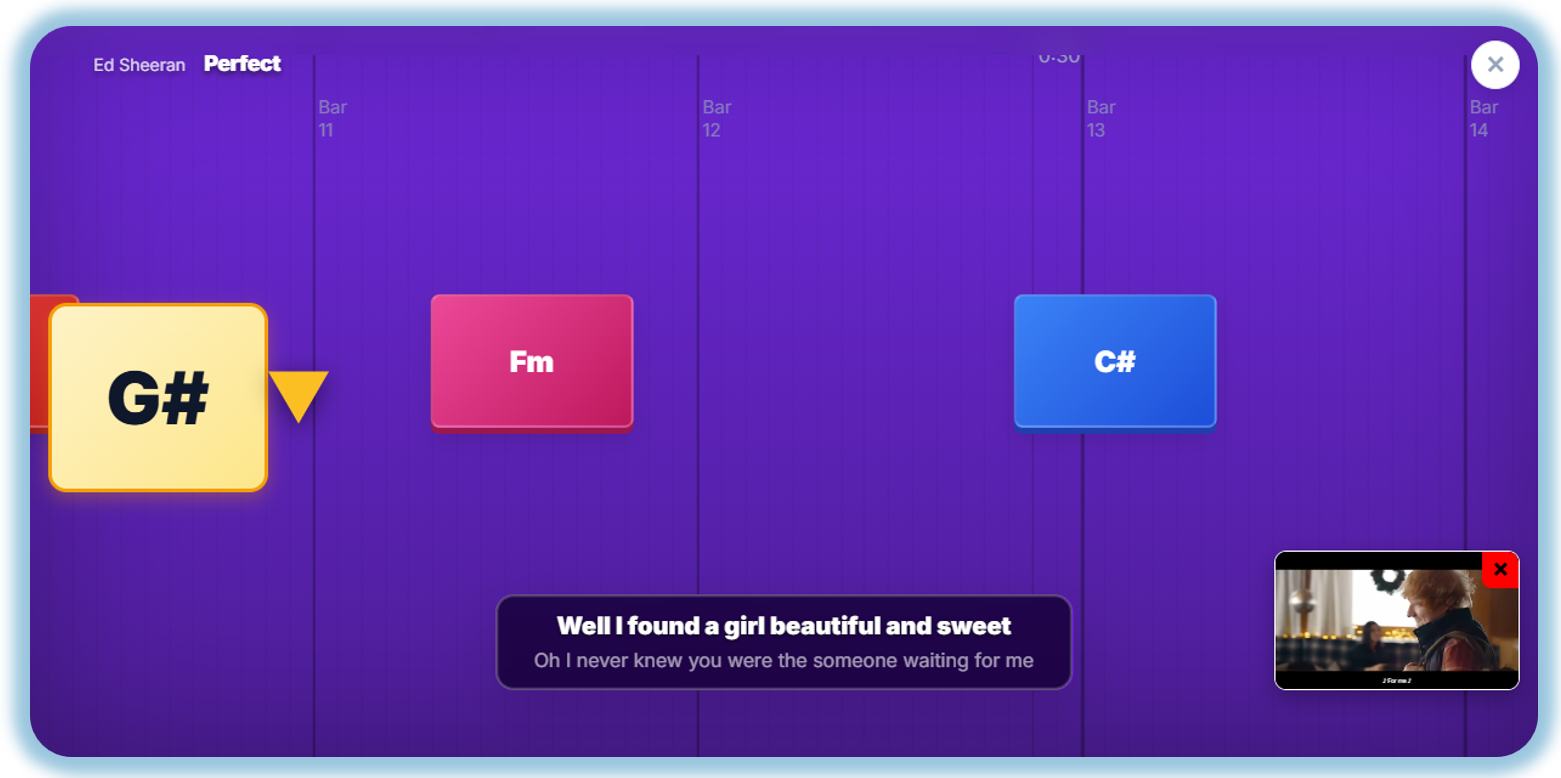
Need to see the words while you play? Open the Chord Timeline screen and see the lyrics appear just like a karaoke system.

๐ŸŽค Karaoke Style (Just-in-Time)

The lyrics are prompted just-in-time exactly when you need them. Just like a professional karaoke setup, the display shows:

  • Live Line: The current line is displayed prominently in the center.
  • Preview: The next line is shown dimmed below, so you're always prepared for what's coming next.

โœจ LRC Time-Synced Lyrics

To use the teleprompter, you need time-synced lyrics (LRC format) from sites like lrclib.net or LyricRadar.com. Paste the text containing [00:12.34] timestamps into the Lyrics field.

  • Karaoke Mode: In the Chord Timeline, these timestamps trigger the lyrics exactly when they need to be sung!
  • L Mark Start Point: Use this button in the Timeline view to sync lyrics instantly to the music. Simple and fast!

Note: You can use the LyricSync setting in the song details (Gear icon) to fine-tune the timing if the lyrics are slightly off.

Karaoke Teleprompter Interface

Practice List

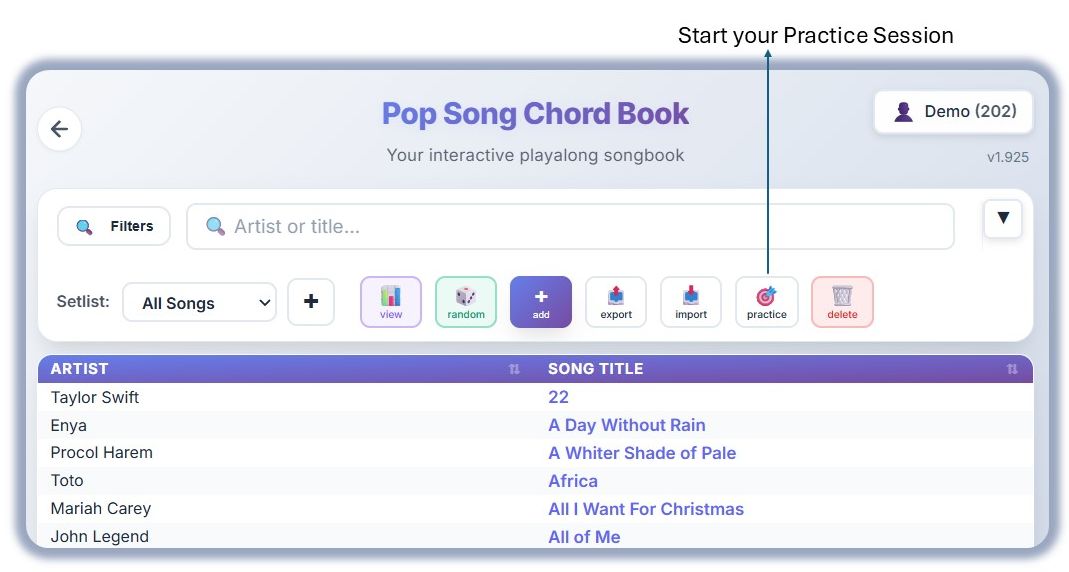
Keep track of your repertoire with the ๐ŸŽฏ icon in the footer. Use the Practice button on the main list to jump to songs that need attention. Every session, hit +1 Practice ๐Ÿ“ˆ to build your streak!

Practice Mode Features Practice Mode Features - List View

Chord Trainer & Song Practice

The Chord Trainer is your personal teacher for mastering piano chords. It features interactive feedback, dynamic key limits, and four distinct levels to build your muscle memory.

๐Ÿ Trainer Levels

  • LEVEL 1: TRIADS โ€“ Learn the basic Major and Minor chords in root position.
  • LEVEL 2: INVERSIONS โ€“ Master first and second inversions (e.g., C2, C3 or C/G and C/E).
  • LEVEL 3: 7THS & EXTENSIONS โ€“ Move to advanced 4-note jazz and pop chords.
  • LEVEL 4: RANKED MODE โ€“ A timed challenge across all levels. Features a global leaderboard!

๐ŸŽต Song Practice Mode

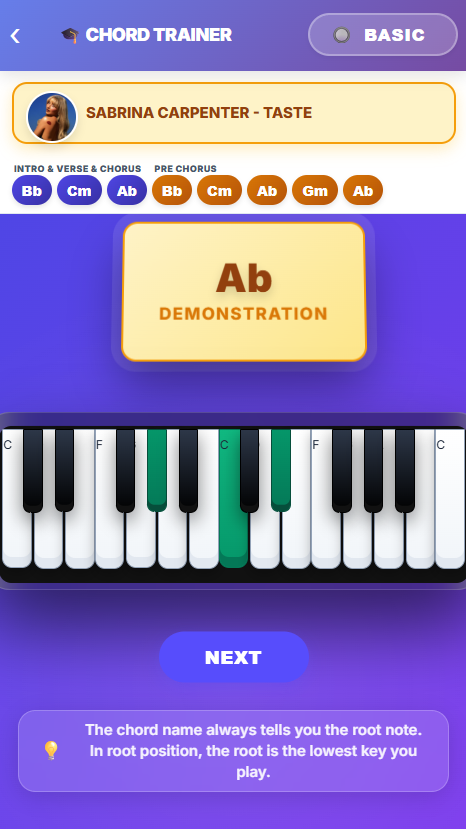
Enter Song Practice mode by clicking ๐ŸŽ“ on the header of the song detail screen. This takes the actual chords from that song and challenges you to play them in order.

Song Practice Entry

  • BASIC vs INVERSIONS: Use the top-right toggle to simplify the song (strip inversion numbers) or practice the full arrangement.
  • Instant Feedback: Get a green checkmark on success, or a red โœ• and auto-reset when you play the wrong notes.
Song Practice Mode Interface

Chord Timeline

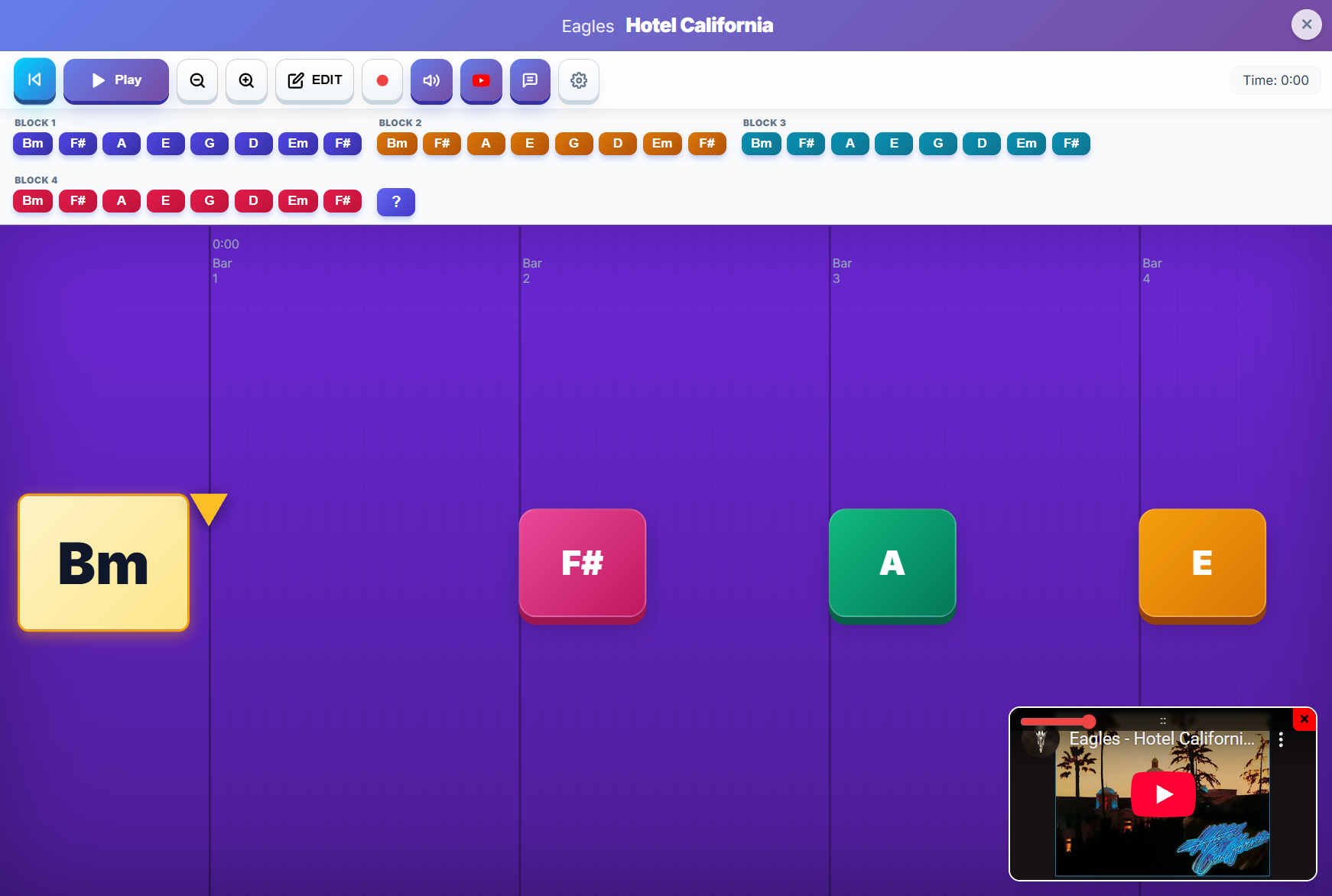
The Chord Timeline is an advanced feature that allows you to see chords move across a playhead in real-time. This is perfect for complex songs where you need to see the exact timing of every chord change.

Chord Timeline

How to use it

  1. Open a song and tap the Timeline icon in the footer.
  2. The system will try to load existing chord timing. If none exists, you can import your own!
  3. Tap Select File to upload a MIDI (.mid) or JSON file.
  4. MIDI Keyboard Support: Connect a MIDI keyboard to your device to play and record chords directly into the timeline in real-time! The system will intelligently identify the chords as you play.
  5. Press PLAY and play along as the chords scroll by.

๐ŸŽน Audio Feedback for Typing

  • A-G Keys: When you're in capture/record mode and press a letter key (A-G), the chord will now "ring out" immediately as it's being recorded, providing the same experience as clicking the buttons.
  • Modifier Keys (#/m): When you use the # or m keys to quickly sharpen or minorize the last recorded chord, the updated chord will also play back instantly so you can verify the change by ear.
  • Smart Matching Support: If you have "Suggested Chords" (Blocks) defined, the audio will correctly play the matched chord from your blocks (e.g., if you press G and it matches G#m from your song blocks, you'll hear the full G#m).

โฌ…๏ธ Bulk Chord Shifting

Did your recording end up slightly off-beat due to input delay? You can quickly fix it:

  • ยซ / ยป Buttons: Use these buttons in the control bar to shift ALL chords in the current song one step (1/8 of a bar) to the left or right at once.
  • Precision Fix: This is perfect for correcting "laggy" captures without having to re-record or drag every chord individually.

Tips for the "Best" MIDI Input

To ensure the parser identifies your chords perfectly:

  • Quantize your notes: The logic groups notes that start within 0.05 seconds (50ms) of each other. Snapping everything to the grid in your DAW is highly recommended.
  • Three Notes Minimum: The system ignores any group with fewer than 3 notes. Ensure your MIDI chords have at least a root, third, and fifth.
  • Chord-Only Track: Use a "clean" MIDI file that contains only the chords. Melody, bass lines, or drums on the same channel can confuse the detection.
  • Recognized Chords: The system supports Major, Minor, Dominant 7th, Major 7th, Minor 7th, and Diminished intervals.

Pro Tip: By providing a quantized, 3-note-minimum MIDI file on Channel 1, you'll get perfect results every time!

๐Ÿ“ฑ Pure Timeline Mode

Pure Timeline Mode โ€“ The Chord Timeline in Landscape mode on Mobile Phone Displays

For a great PLAY along mode while using the app on a mobile phone, just ROTATE the screen to landscape mode and experience the Pure Timeline Mode. No editing, no buttons, just the Chords and Lyrics.

Pure Timeline Mode

Example JSON for Chord Timeline

Below is a short example of how a JSON file for the Chord Timeline feature should be structured:


{
  "name": "Advice for the Young at Heart",
  "tempo": 122,
  "duration": 534.59,
  "chords": [
    {"name": "Fmaj7", "time": 0.00},
    {"name": "Em7", "time": 7.87},
    {"name": "Em7", "time": 527.29}
  ]
}

Song Map

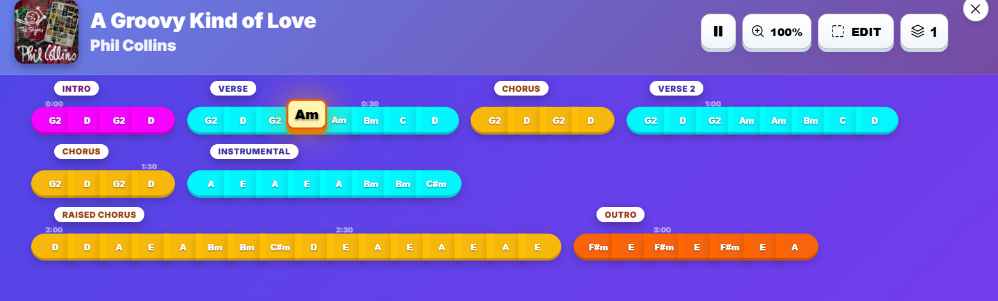
The Song Map offers a high-level visualization of the entire song's layout. It's the perfect tool for understanding complex arrangements at a glance and navigating through the track effortlessly.

Features & Instructions

  • Visual Structure: Chords are grouped into color-coded sections like Intro, Verse, and Chorus, giving you a clear mental map of the song.
  • Real-time Playback: When the song is playing, the active chord is highlighted with a glowing effect and follow-focus, so you never lose your place.
  • Instant Navigation: Click or tap on any section or specific chord block to jump the playback head exactly to that moment in time.
  • Smart Labels: Section names are displayed prominently above each block, helpfully syncing with the labels you define in the song details.
  • Open the Map: Tap the icon in the header of the Chord Time screen to toggle the Song Map view.
Song Map Interface

MIDI Keyboard Support

Connect your MIDI keyboard to your device to play and record chords directly into the app. This feature transforms the Pop Song Chord Book into a powerful pro-grade practice and arrangement tool.

How to Enable

By default, MIDI support is OFF to prevent users without keyboards from being bothered by browser permission popups. To turn it on:

  1. Go to your ๐Ÿ‘ค Profile (top right).
  2. Scroll down to Feature Settings.
  3. Toggle MIDI Keyboard Support to ON.
  4. The app will now ask for MIDI permissions. Click "Allow" to connect your hardware.

What can you do with MIDI?

  • Real-time Chord Detection: Play notes on your keyboard, and the app will instantly identify the chord (e.g., C, Am, G7, Fsus4).
  • Professional Recording: In the Chord Timeline, switch to "Record/Capture" mode. Play your song on the keyboard, and every chord change will be perfectly recorded into the timeline with exact timing.
  • Audio Feedback: You'll hear a high-quality piano sound as you play, making practice sessions feel more alive.
  • Instant Chord Entry: Use your keyboard to enter chords into the Progression Editor without typing.

Note: MIDI support requires a modern browser (Chrome, Edge, or Opera) and a USB/Bluetooth MIDI keyboard.

Install as App (Full Screen)

For the best experience, you can install this website as an app on your phone. This gives you a full-screen view (removing the browser address bar) and makes the chord charts even easier to read.

๐Ÿ“ฑ iOS (Safari)

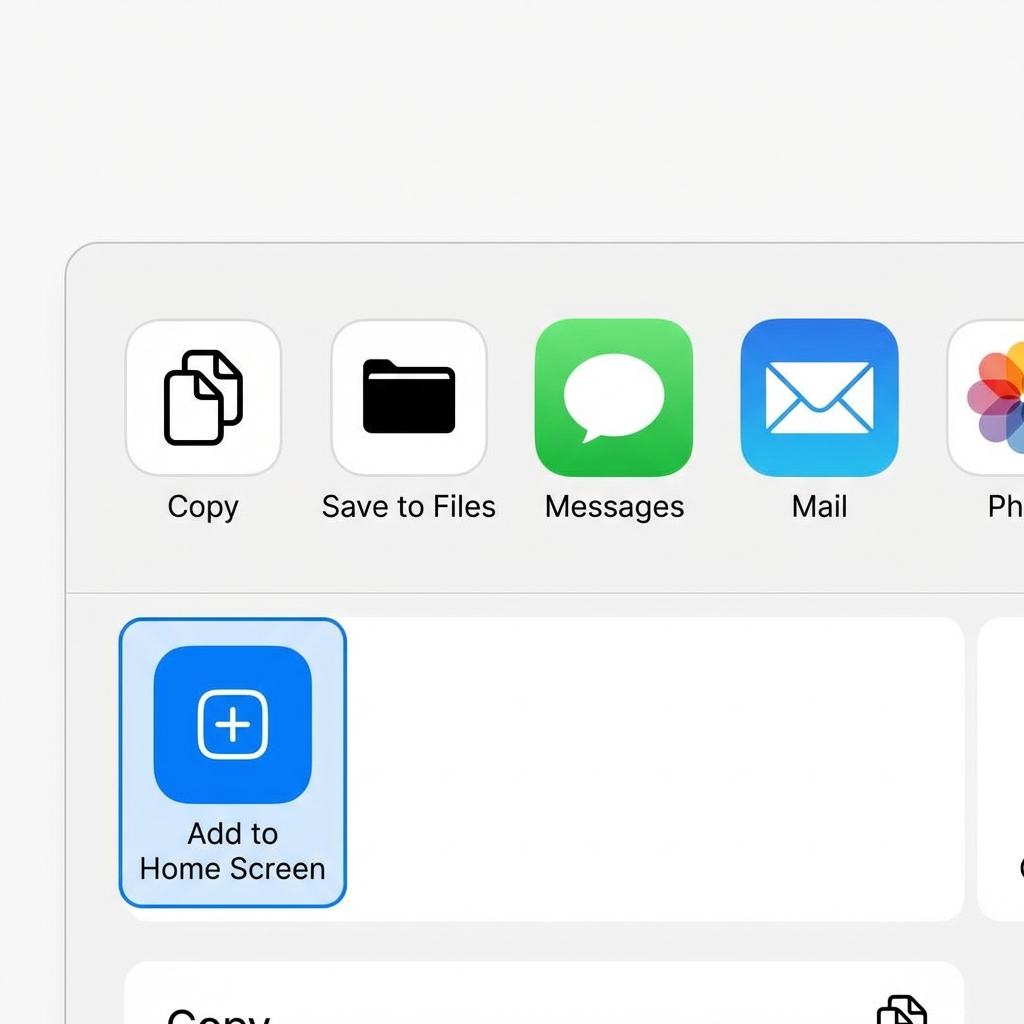
1. Tap the Share button Share Icon at the bottom of the screen.
2. Scroll down and tap "Add to Home Screen".
3. Tap Add to confirm.

๐Ÿค– Android (Chrome)

1. Tap the Menu (three dots โ‹ฎ) in the top right corner.
2. Tap "Add to Home screen" or "Install App".
3. Follow the prompts to install.

PRO TIPS

  • 1

    YouTube Premium

    For the best experience, we highly recommend YouTube Premium. This allows you to jam along with songs uninterrupted, without any annoying advertisements breaking your practice flow.

  • 2

    Edit on Large Screens

    While the app is mobile-friendly, we suggest doing heavy editing on a PC or a large tablet. Mobile screens are quite compact, and precision editing is much easier with the extra screen real estate and a mouse.

  • 3

    Song Setup Essentials

    When adding a new song, always include the YouTube video URL for sync. Additionally, using tools like LyricRadar.com or lrclib.net is the fastest way to get high-quality timed lyrics for the teleprompter.

  • 4

    Install as Web App

    Don't forget to use the "Install as App" option documented above! It removes the browser UI and gives you more room for your chord sheets, making it feel like a professional instrument tool.

  • 5

    More Tips Coming

    We're always adding new features to help you play. Keep an eye on this section for more professional tips and tricks to master your repertoire!